
Mentoring Allocation
Mentoring Allocation lets you set up your branch's mentors and assign mentees to them, all from one screen. Only users who have been granted the additional Mentoring permission, or SysAdmin-level users, can access Mentoring Allocation. If you can't see the option, please speak to your branch secretary or ActivistHub champion who can arrange this for you.
Step 1 - Logging in
Before we can start we need to head to https://www.activisthub.co.uk and Log In as we normally would.
(If you are unsure how to log in follow the instructions HERE)
Step 2 - Open the Mentoring application
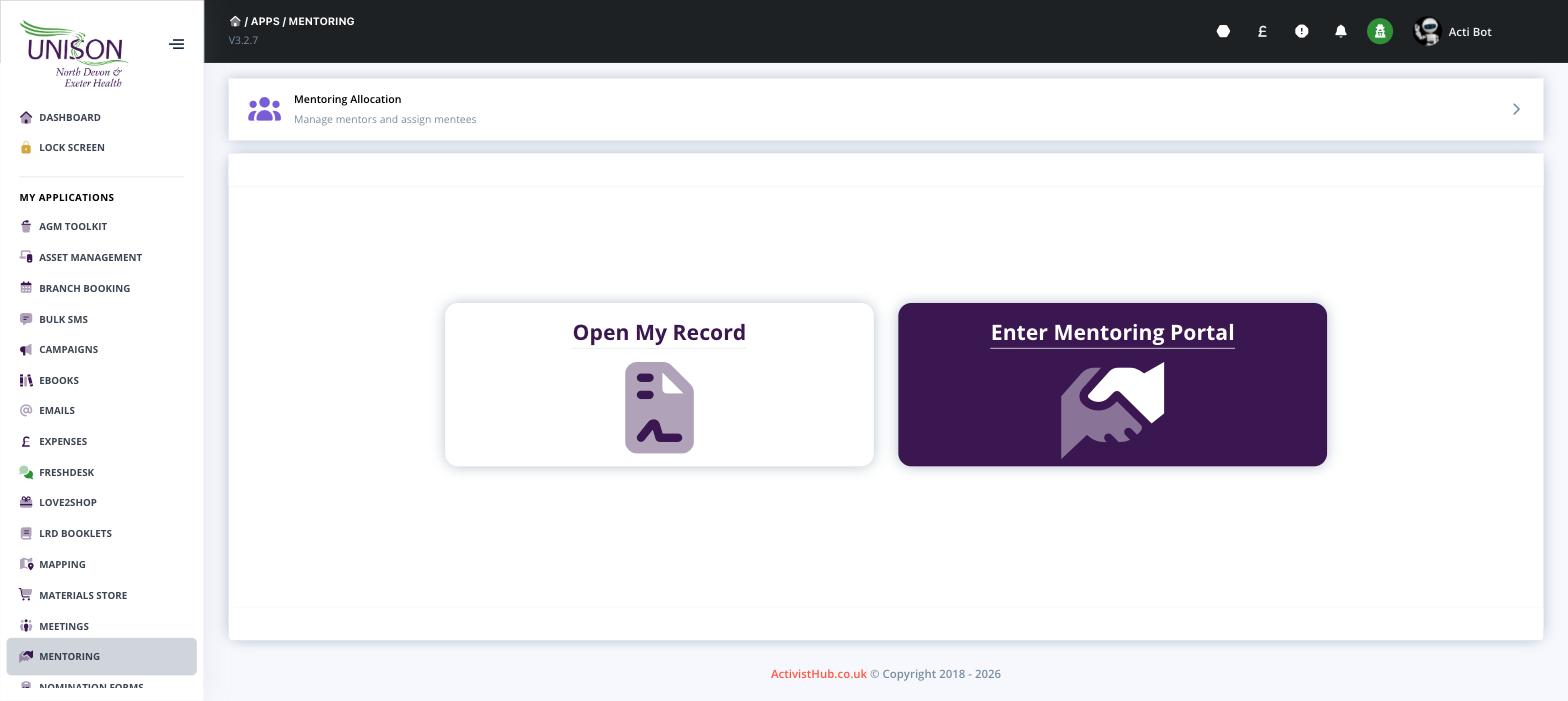
From the left menu, choose the "Mentoring" application from your "My Applications" list. If you do not see this option then your branch may not have the feature enabled, or your branch may need to enable your access to this application.
Step 3 - Open Mentoring Allocation
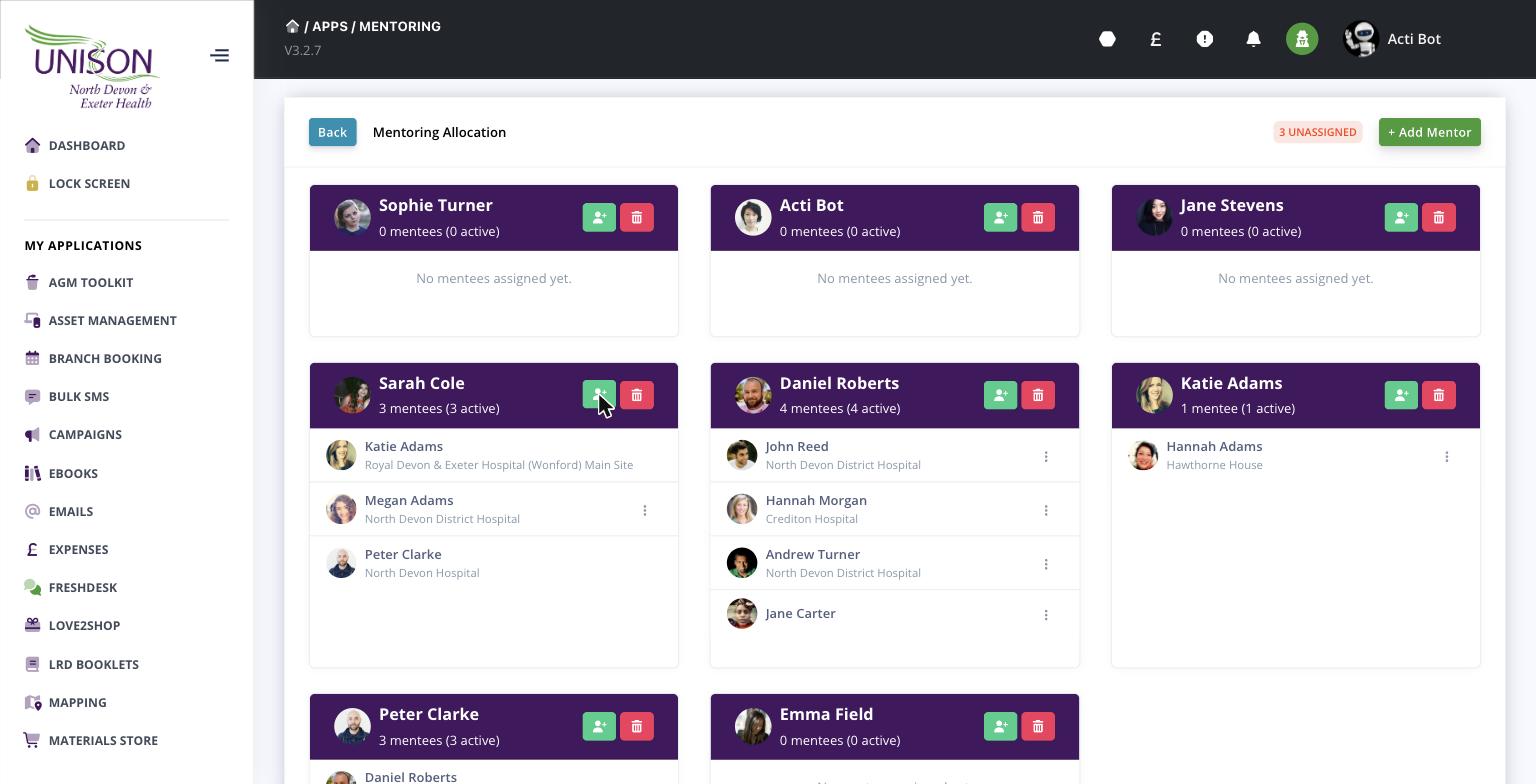
On the Mentoring home screen, click Mentoring Allocation at the top ("Manage mentors and assign mentees"). This opens the allocation board, where each mentor appears as a card along with any mentees assigned to them.
Step 4 - Add a mentor
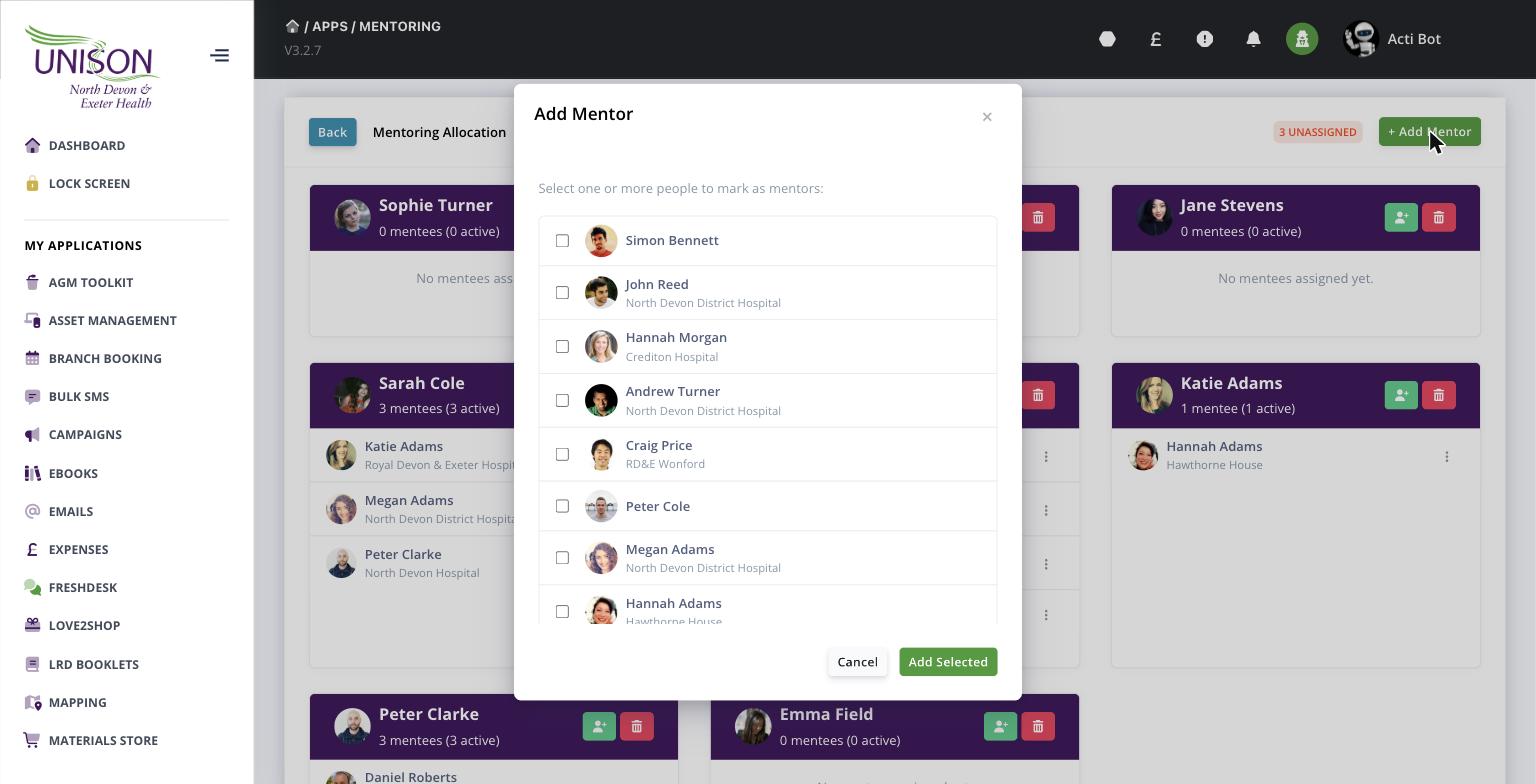
To set someone up as a mentor, click the green "+ Add Mentor" button in the top right. A window will appear listing the people in your branch — simply tick one or more people to mark as mentors, then click "Add Selected". Each person you choose will now appear as their own mentor card.
Step 5 - Assign mentees to a mentor
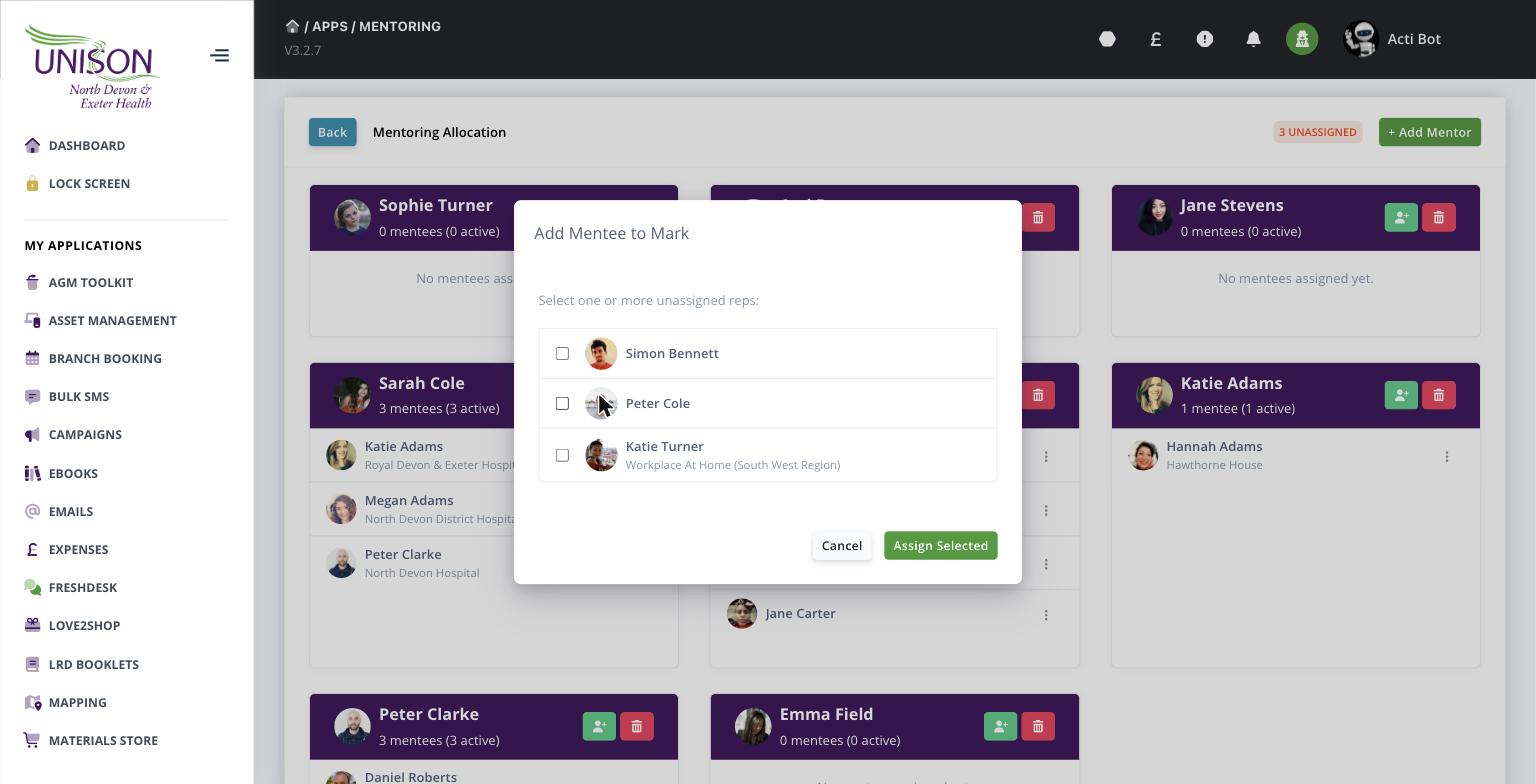
Now we can assign mentees. On the mentor's card, click the green person icon in the top right of the card. A window titled "Add Mentee to ..." will appear listing your unassigned reps. Tick one or more reps and click "Assign Selected" — they will be added to that mentor and the counts on the card will update.
Step 6 - Managing mentors and mentees
Back on the allocation board you can keep an eye on everything at a glance:
- The number on each card shows how many mentees that mentor has.
- The UNASSIGNED badge at the top shows how many reps still need a mentor.
- To move or remove a mentee, click the three-dot menu next to their name.
- To remove a mentor entirely, click the red bin icon on their card. Removing a mentor returns all of their mentees to the unassigned pool, ready to be assigned to another mentor.
And that's it — your mentors and mentees are now allocated! You can come back to this screen at any time to add new mentors, assign more mentees, or make changes as your branch's mentoring scheme grows.