Agenda Items
Adding agenda items requires either admin-level access or additional privileges. Any user can propose agenda items prior to the meeting date which are then reviewed before being added.
Step 1 - Logging in
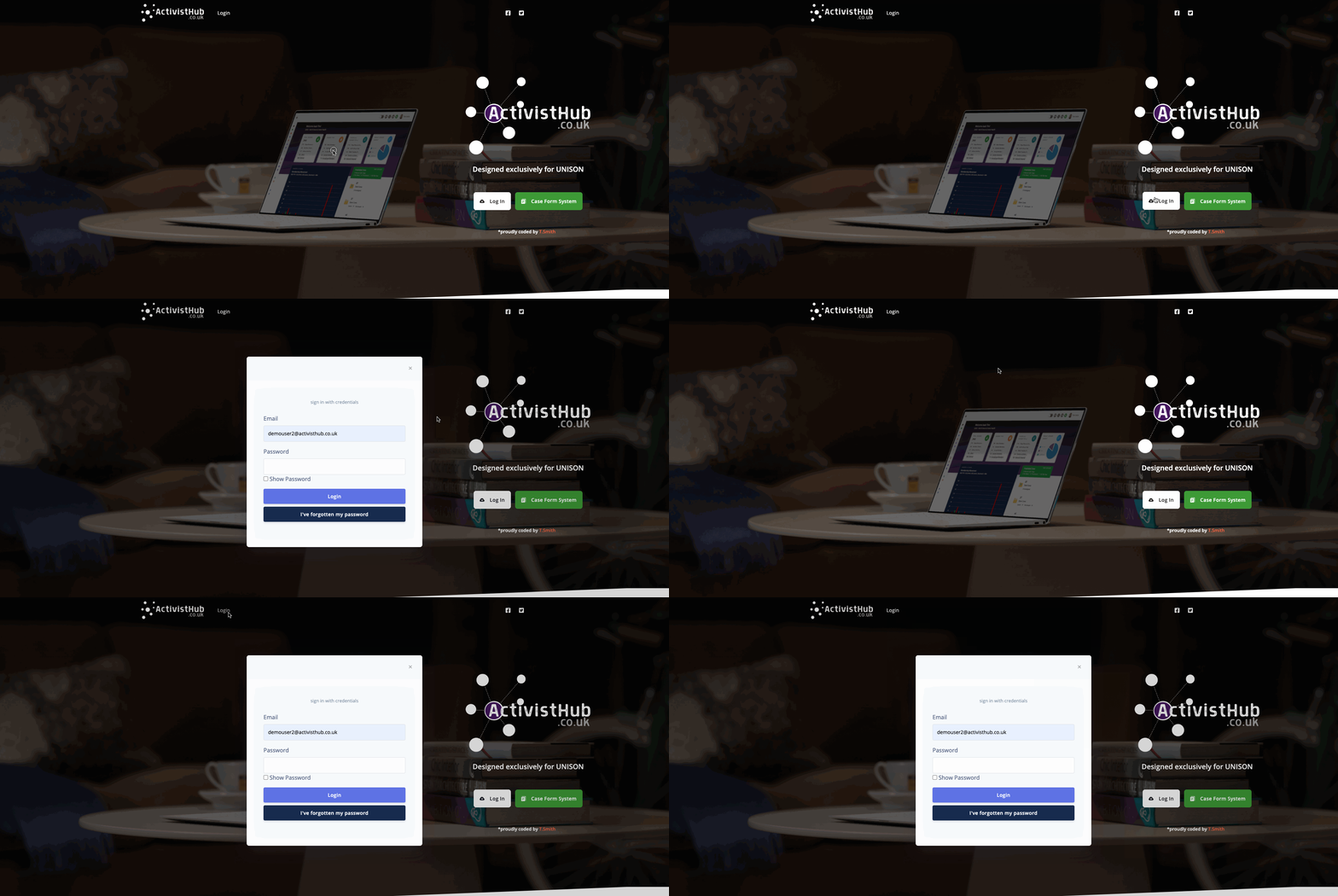
Before we can start we need to head to https://www.activisthub.co.uk and Log In as we normally would.
(If you are unsure how to log in follow the instructions HERE)
Step 2 - Load the meeting
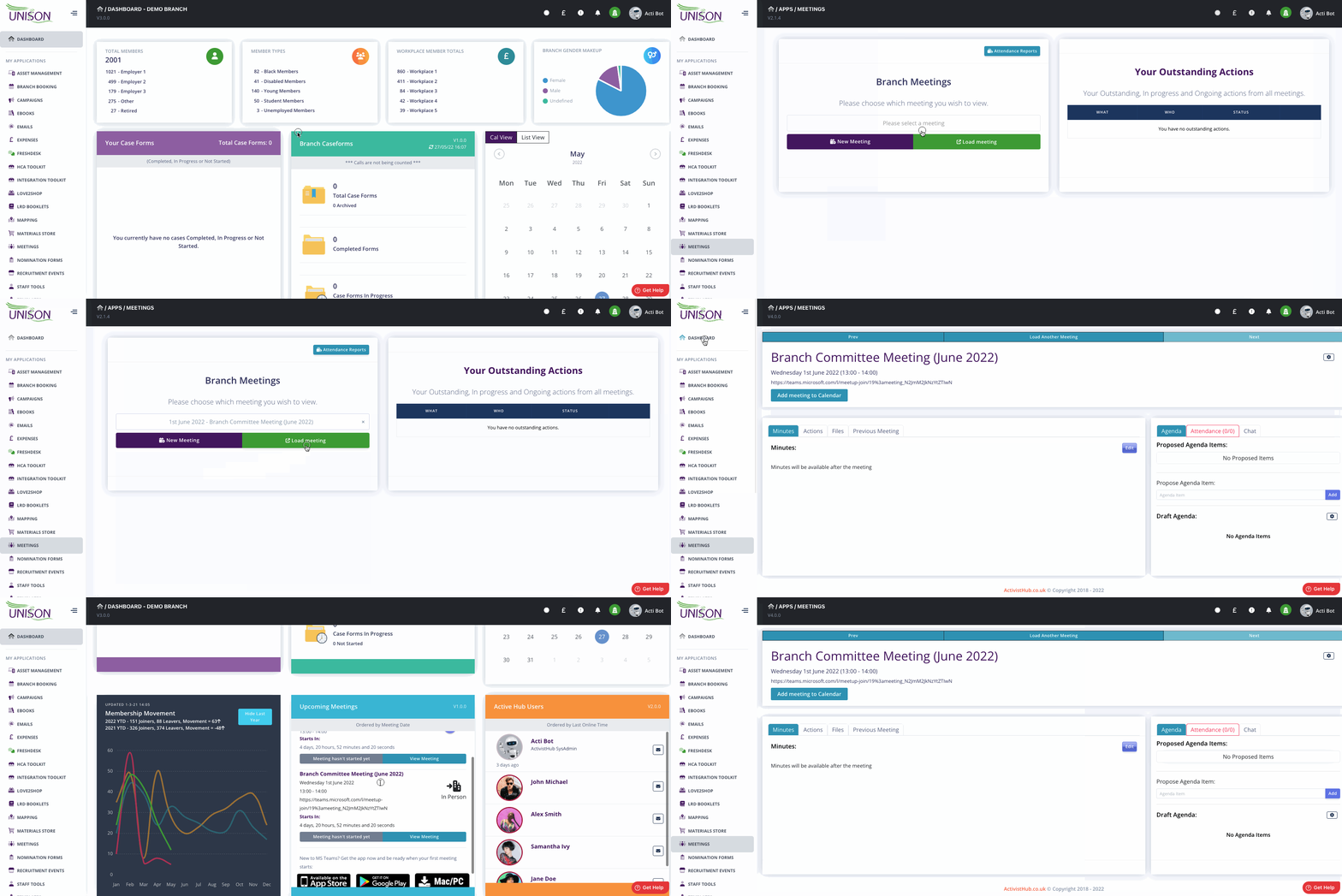
Next, we need to get to the meeting page we want to add agenda items too, we do this by either selecting the “Meetings” application from the left menu and then choosing the meeting, selecting it from the dropdown menu and clicking “load Meeting” or we can click the “View Meeting” link on the upcoming meetings widget from the dashboard.
Proposing an Agenda Item
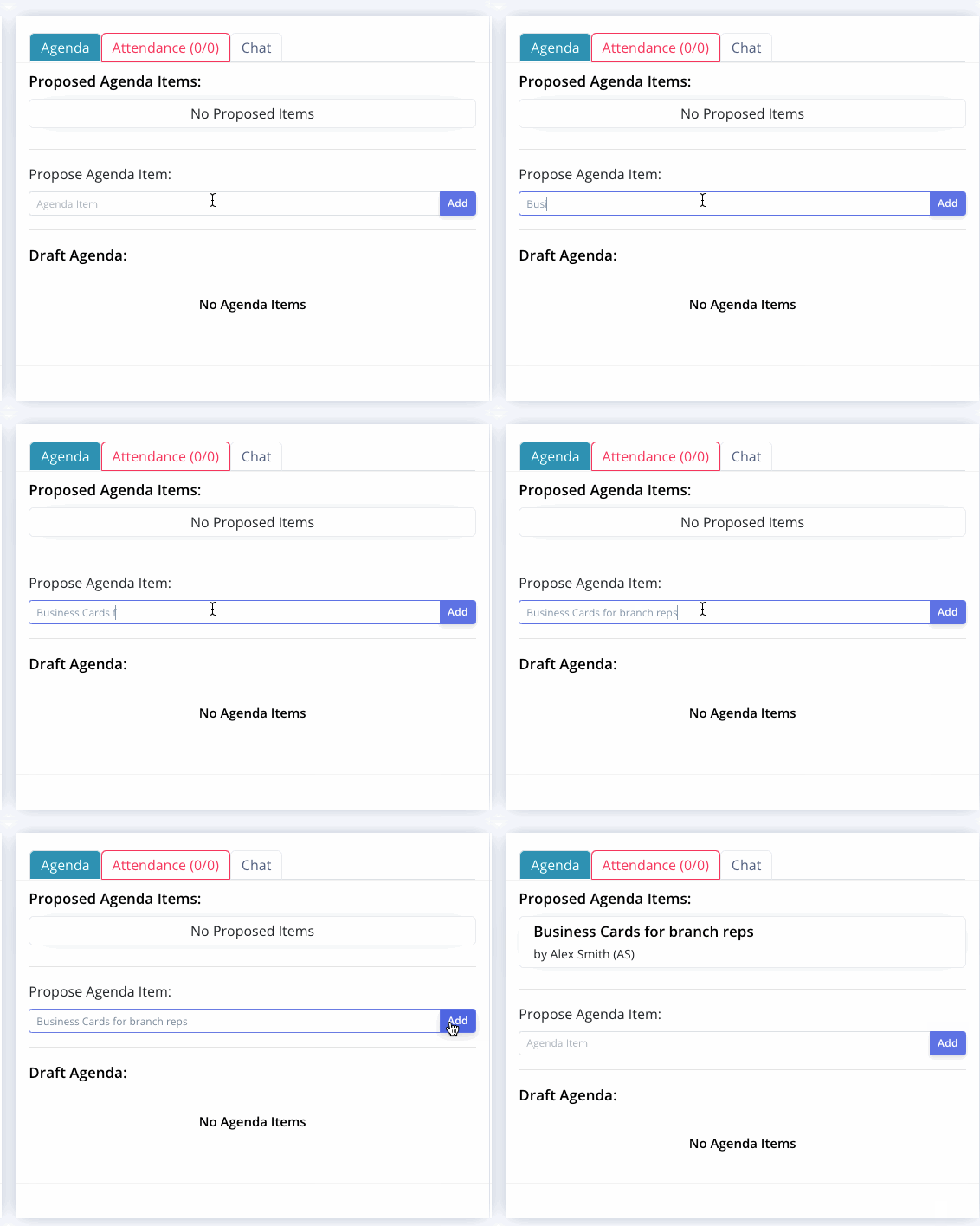
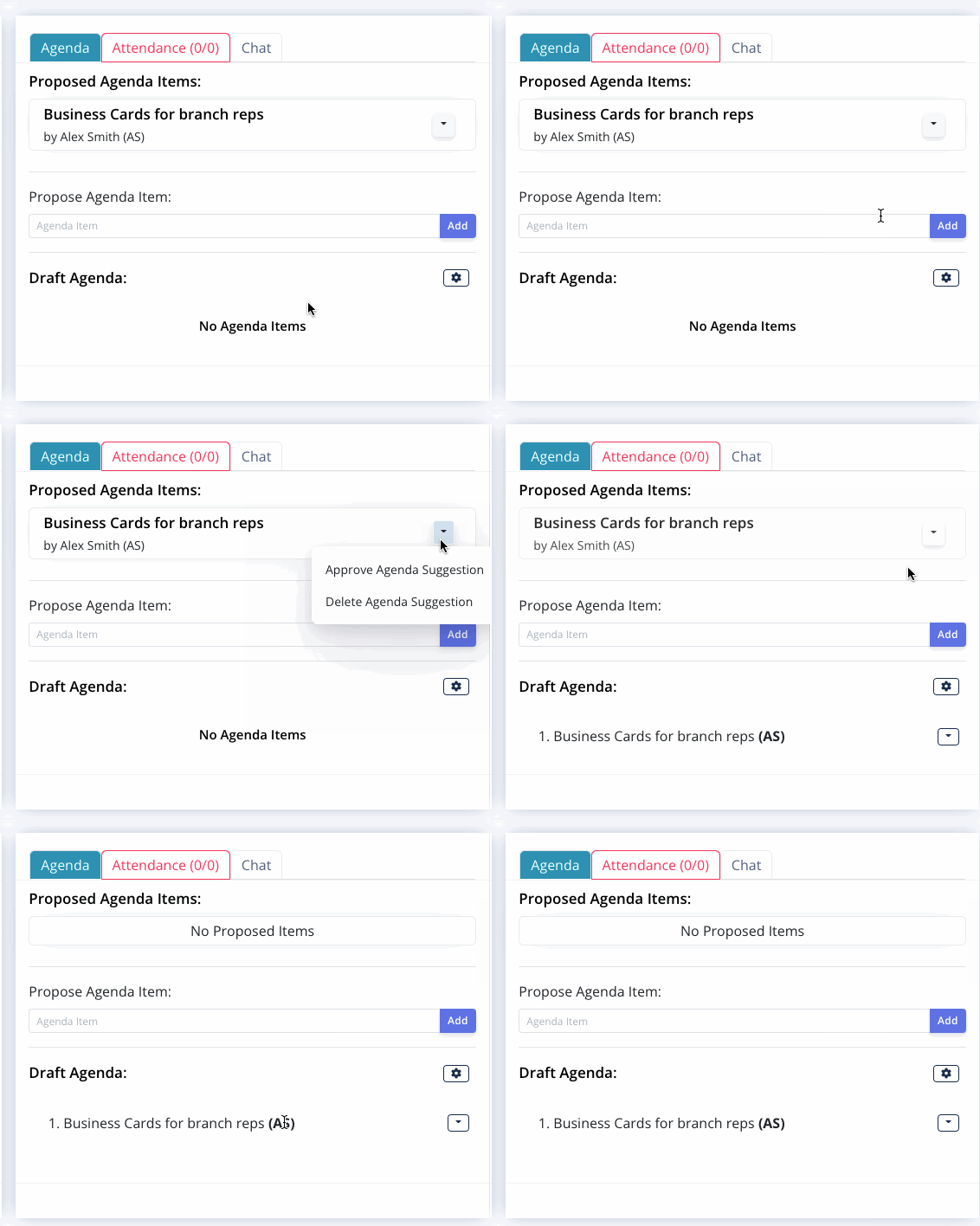
Now we've loaded the meeting we can see the agenda tab on the right side of the screen, as the meeting hasn't taken place yet each user has the option to propose an agenda item by typing in the agenda item description and clicking add. Here we see Alex adding “Business Cards for branch reps”, once added the proposed item is visible to all users.
Approving or removing proposed items
As an admin user or a user with additional permissions, I can choose to approve or remove the proposed agenda item, In this example I will approve the item. Once approved it will move to the bottom of the draft agenda.
Adding Agenda Items
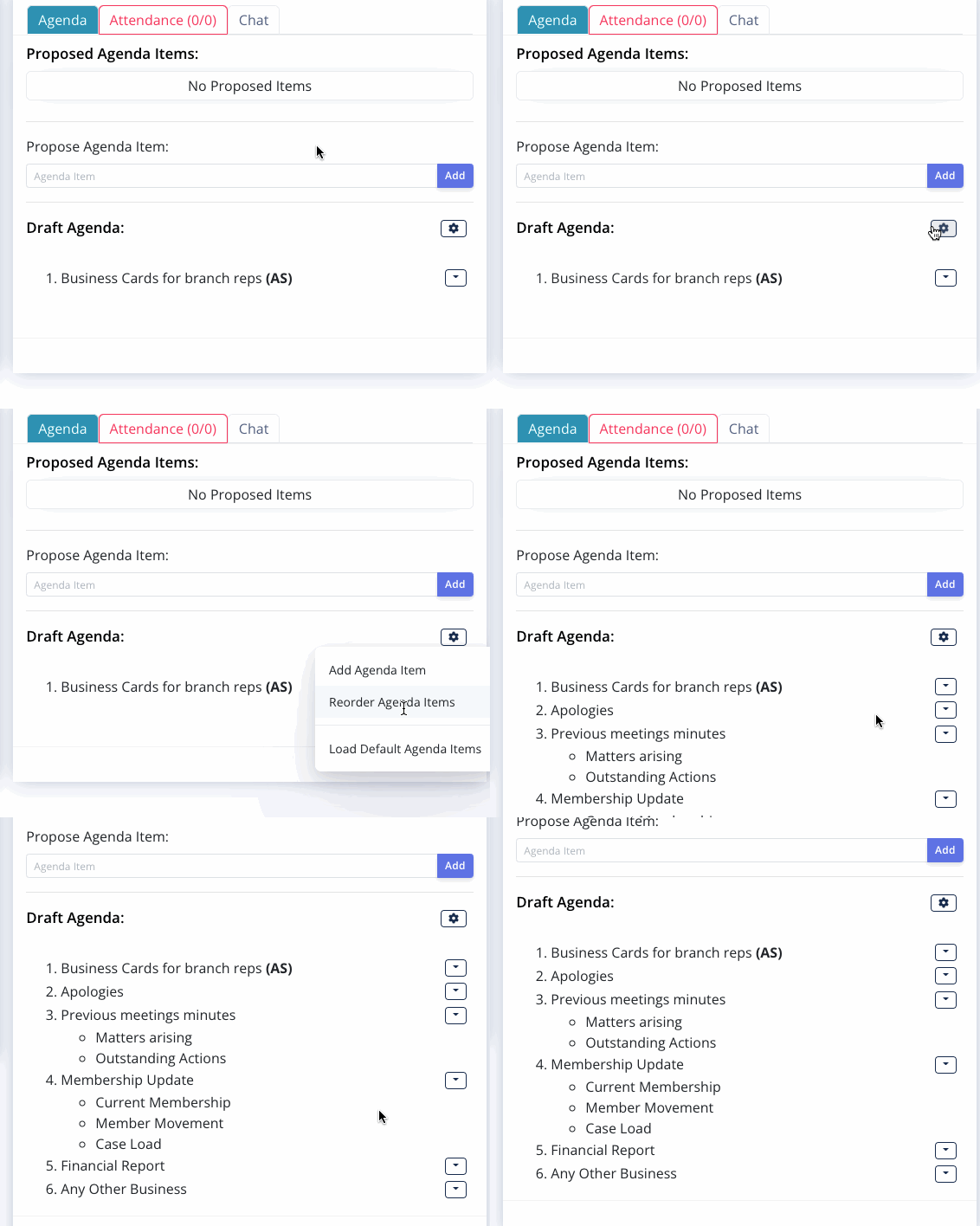
Adding an agenda item directly as an admin user or a user with additional permissions is completed by clicking the cog beside the agenda and choosing “Add Agenda Item”
If your branch has default agenda items set up within the ActivistHub these can all be loaded by clicking “Load Default Agenda Items” from the same menu.
In the below example I load the default agenda items.
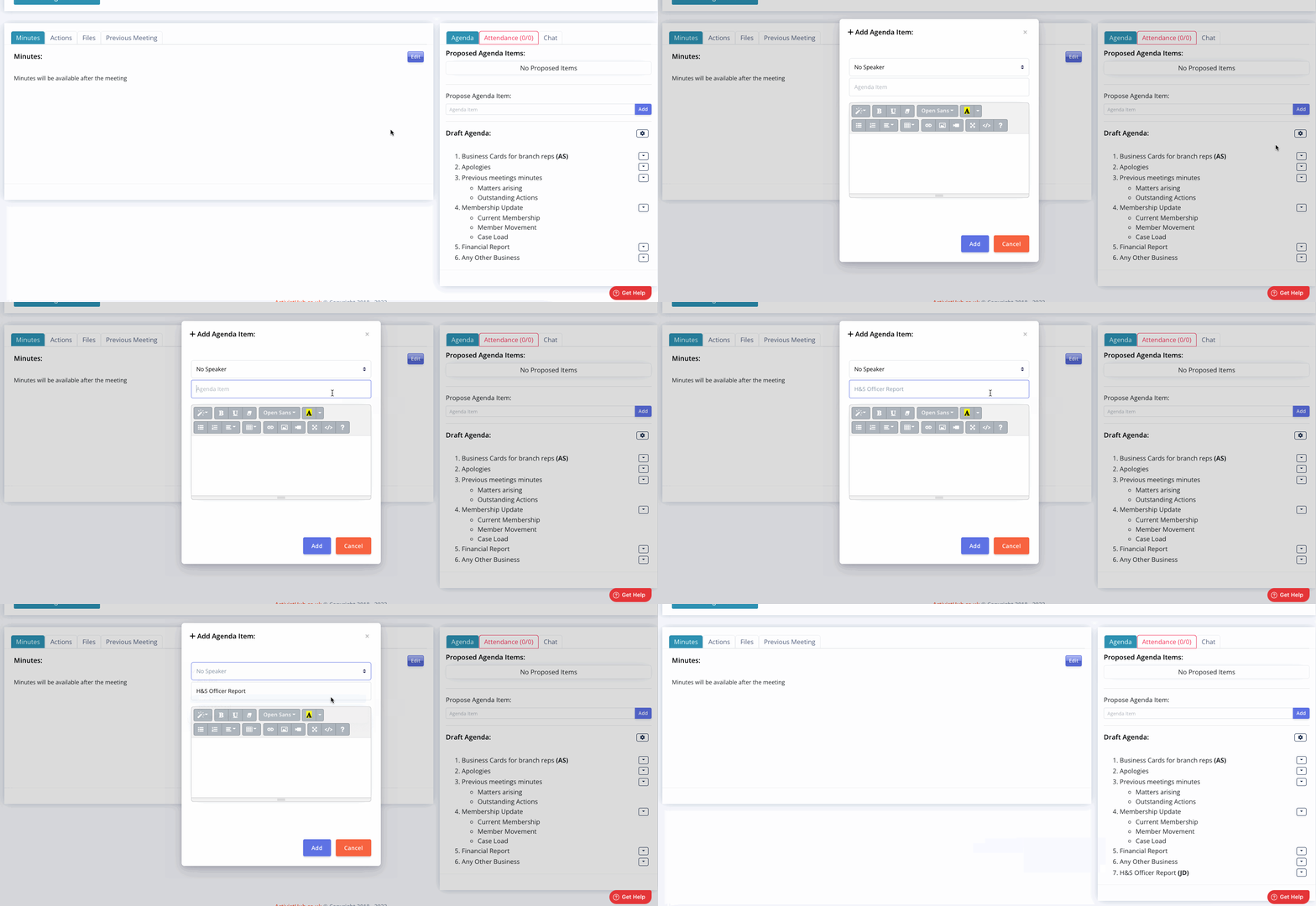
Now it's time to add an agenda item, I first click on “Add Agenda Item” from the menu, then in the window that opens, I enter the agenda item description and choose the speaker in the drop-down box before clicking the “Add” button.
The agenda items are then added to the draft agenda and the speaker's initials are added in bold, hovering your mouse over the initials will display the full name of the speaker.
You can also add a description or sub-items within the window that opens using the large text box.
Reordering Agenda Items
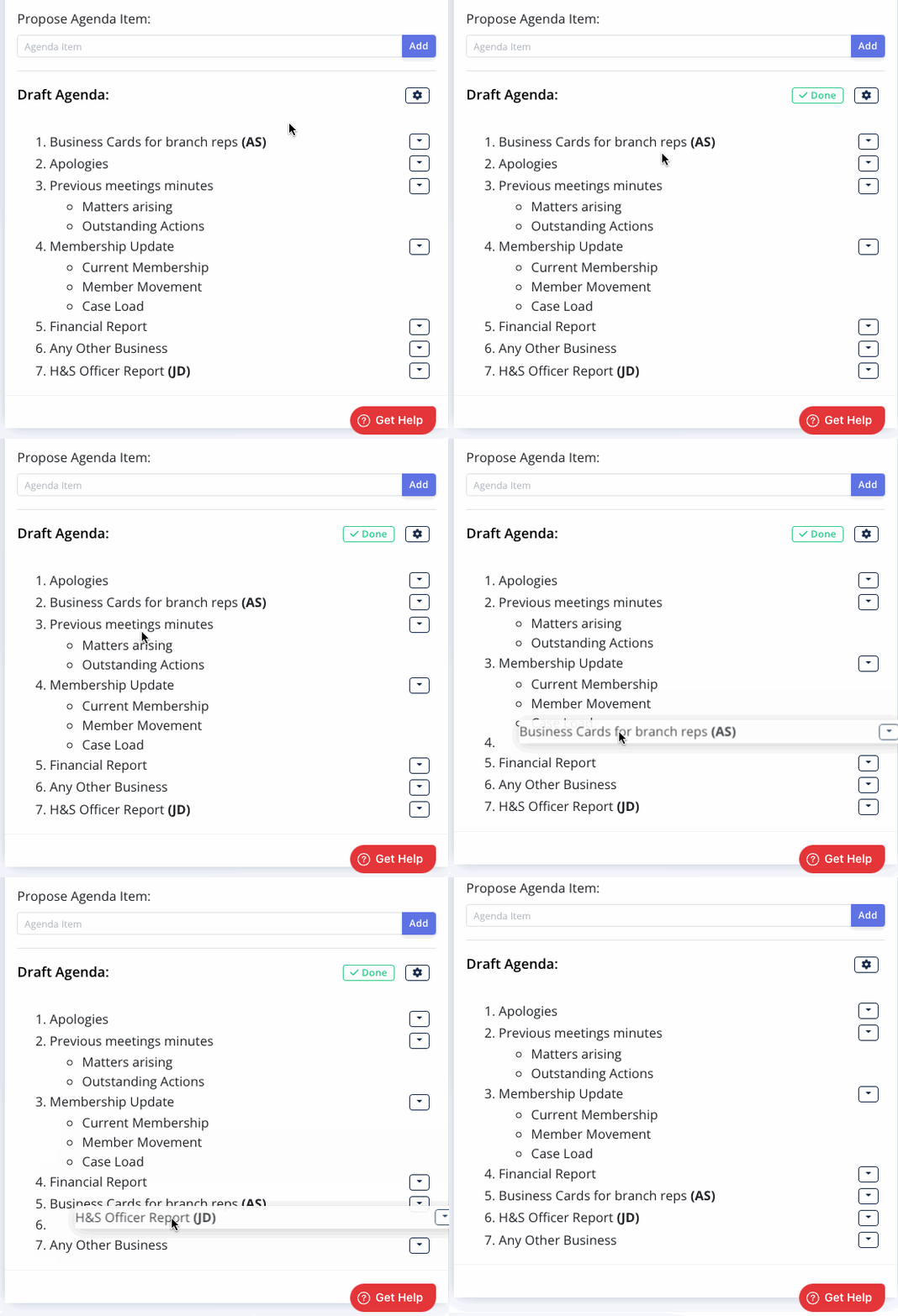
Now I have my agenda items listed, Im not happy with the order of the agenda items so it's time to have a shuffle about.
Clicking the cog next to the agenda I choose 'Reorder Agenda Items" Im then able to drag the agenda items into the order id like and when I'm finished I click the “Done” button at the top.
Editing Agenda Items
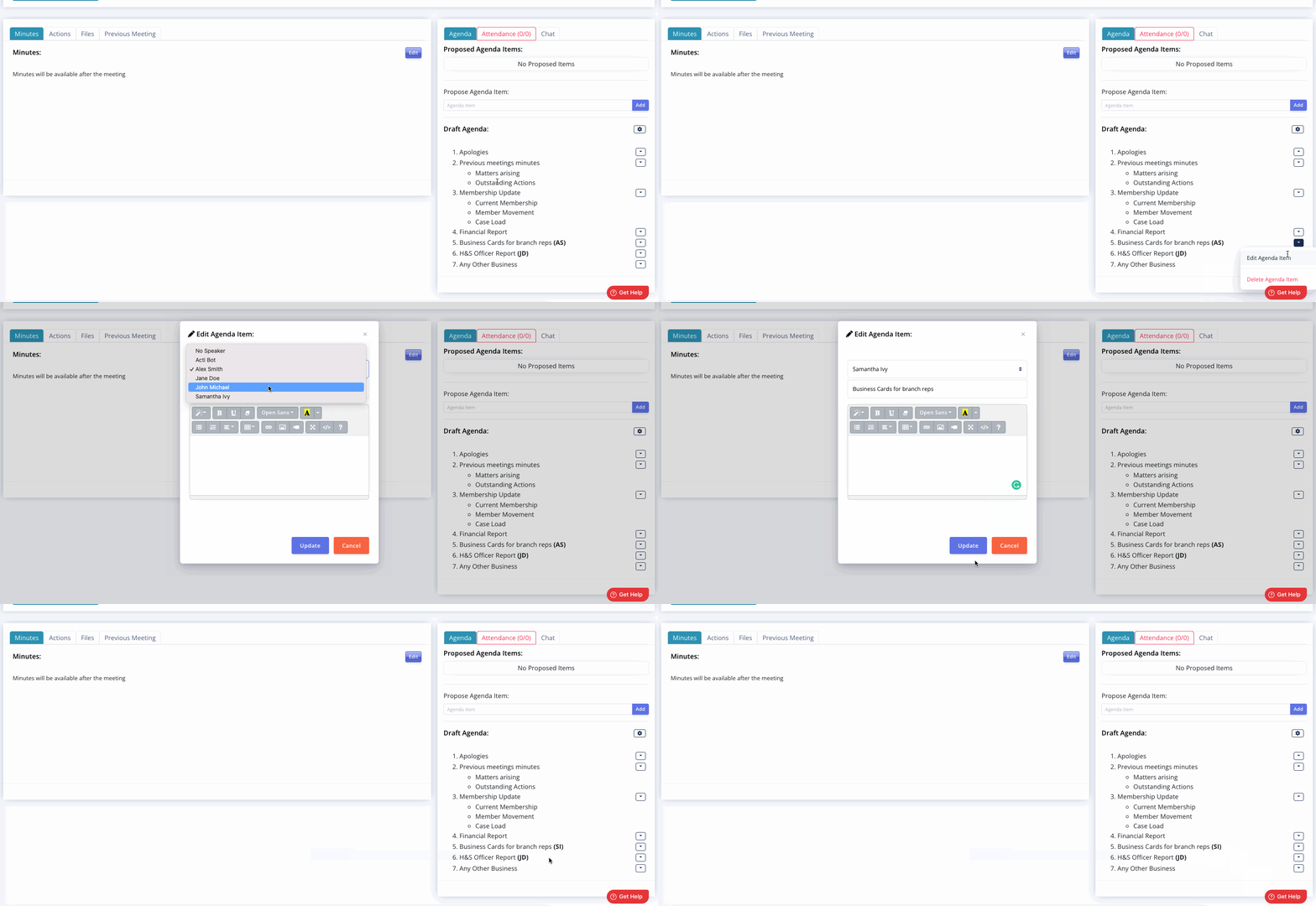
We're days away from the meeting and we receive an apology from one of our speakers, no problem! Someone else has offered to talk on the item, we just head into the agenda and change the speaker.
We first click on the arrow at the end of the agenda item row and choose “Edit Agenda Item”, in the window that opens I can choose a new speaker and then click “Update”.